




Have you ever set up a report in Google Data Studio and realised your data isn’t as clean as you’d like it to be?
Maybe you’ve used inconsistent naming conventions in some of your campaigns – some are uppercase, and others are lowercase? Perhaps some of your URLs have parameters appended and others don’t? Or maybe you’ve changed your URLs and removed a sub-directory? Or you’ve renamed a sub-directory?
Luckily, we can fix all these issues by creating new Calculated Fields making use of Data Studio’s Text Functions!
USING TEXT FUNCTIONS IN CALCULATED FIELDS
If you have a mixture of uppercase and lowercase within the same dimension, you’ll have fragmented data. If we force all the fields to be uppercase or lowercase, we can consolidate your data and clean it up. Whether you want to go UPPERCASE or lowercase is your call – but lowercase is probably easier on the eyes.
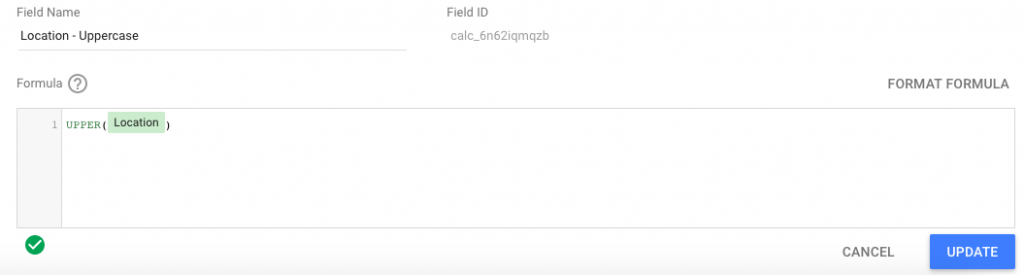
CONVERTING TEXT TO UPPERCASE
Data Studio has a handy ‘UPPER’ function which allows us to do this. In the screenshot below, you can replace ‘Location’ with whichever Dimension you would like to force to uppercase.
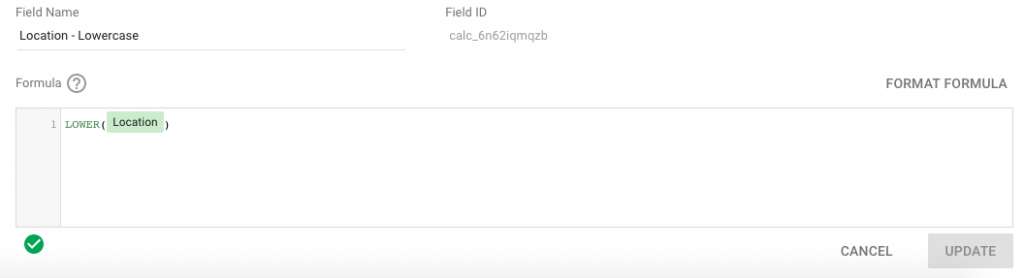
CONVERTING TEXT TO LOWERCASE
Same idea here – this time we use Data Studio’s ‘LOWER’ function. Again, you put the Dimension you’d like to be lowercase where we’ve used ‘Location’ in the example below.
REMOVING PARAMETERS FROM URLs
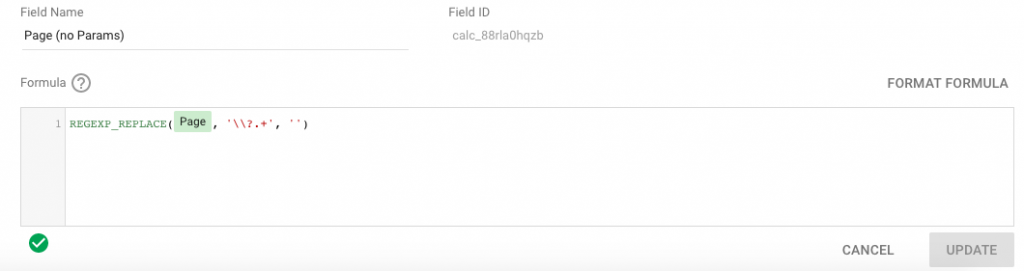
This one is a little more complicated as we’re going to use Data Studio’s REGEXP_REPLACE function. Regular Expressions can be hard to wrap your head around but don’t worry, we’ve got this.
REGEXP_REPLACE(Page, ‘\\?.+’, ”)
There are three parts to the REGEXP_REPLACE function:
– the first part is the Dimension we’re going to use: Page
…because we want to remove Query Parameters from our Page URLs
– the second part is the Regular Expression: ‘\\?.+‘
This RegEx looks for ‘?’ and anything after it in your Page URL
– the final part is our replacement string: ”
In this case, it’s a blank string because all we want to do is strip the parameters.
Essentially we’re using the REGEXP_REPLACE function to replace something (our parameters) with nothing (a blank string).
REMOVING A TEXT STRING
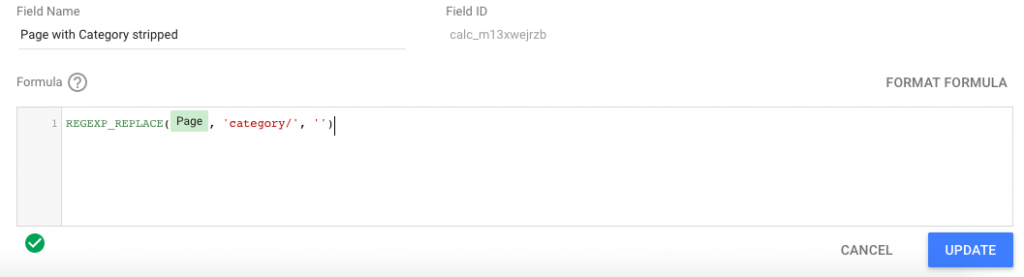
This works in exactly the same way as above – we again use Data Studio’s REGEXP_REPLACE function to remove a string of text. In the example below, we use this function to remove the subdirectory ‘category/’ from a URL string.
REGEXP_REPLACE(Page, ‘category/’, ”)
REPLACING A TEXT STRING
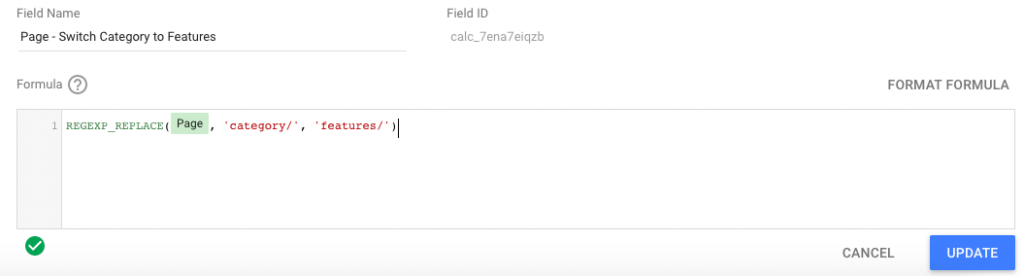
We can also use the REGEXP_REPLACE function in Data Studio to swap out one string of text for another. It works exactly the same as the previous two examples above, except this time, we’re defining a replacement string in the third part of the function, rather than leaving it as a blank string.
In the example below, we switch out ‘category/’ in our Page URL and replace it with ‘features/’
REGEXP_REPLACE(Page, ‘category/’, ‘features/’)
Hopefully this guide to using Text Functions in your Calculated Fields allows you to clean up the data in your Data Studio reports! If you have any issues getting these to work, feel free to leave a comment below or pop us an email – we’re always happy to help.

how to extract value between two texts in page field in data studio calculated field
Example : **abcd/collection/collection-name1/**
I want to extract only “collection-name1” from it.
Hi Sreerej,
You would use something like…
REGEXP_EXTRACT(Page, ‘/abcd/collection/([^&]+)/.*’)
Thanks,
Michael
Hi, do you know, if there is a chance to use a parameter instead the direct regex-string?
For example
REGEXP_REPLACE(Page, Parameter_1)
I get Parameter_1 from a input-field.
I don´t get any results so far, if I use text in the parameter, although there is no error recognized. If I use numeric values for the parameter, it is working.
Hi Alex, thanks for getting in touch.
You should be able to use your Parameter in a Regex function. You might be missing an element in your function though, as the REGEXP_REPLACE function requires three parameters to operate.
REGEXP_REPLACE(Field Or Expr, Replace regex, Replacement string)
So in this example, it sounds like you might be missing the “Replace regex” parameter, in other words, the string you’d like to replace with your Parameter_1 value. I’ve run a quick test on this and it looks to work okay. Don’t forget that the “Replace regex” will need to be in quotation marks if it’s a text string, which it’s likely to be if it’s from the Page dimension.
Hopefully this solves the issue you’re encountering, but if you’re still faced with errors then please don’t hesitate to get in touch. This resource might also be useful: https://support.google.com/datastudio/answer/9002005?hl=en#use-parameters&zippy=%2Cin-this-article%2Ccalculated-field-with-parameter-example
Thanks, Conor